

Supported Devices
Ascend supports the Epson TM-T88V, VI, and VII devices. If you have additional questions about support devices and hardware requirements, check out our article, Hardware - Requirements.
If your receipt printer has not been properly installed yet, visit Hardware - Install the Epson Receipt Printer to learn how to set it up and install the correct software.
Start with the hardware
The first thing you should do when your any printer is acting up is: check all the hardware.
- Open the printer.
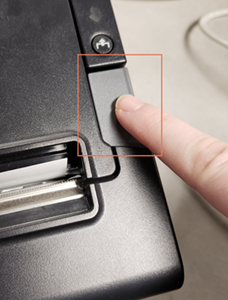
- Make sure there is paper, with the correct side facing up.
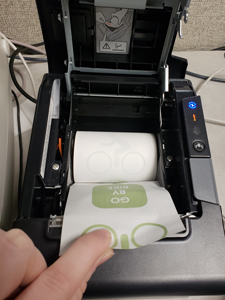
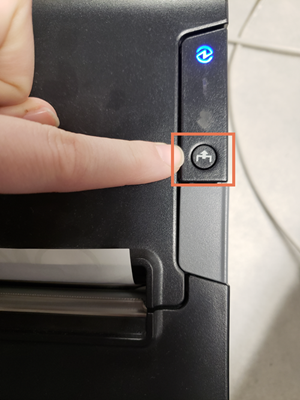
- Reset the paper, close the printer and hit the feed button, just to double-check.
- Check the power cord. Is it correctly plugged into both the printer and the power source?
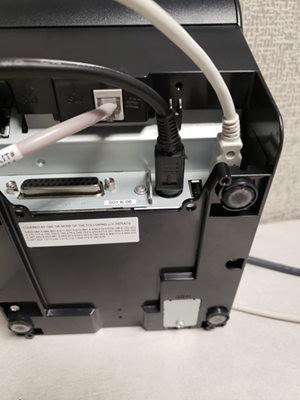
- Is the USB cord correctly plugged into the printer and the back of your computer? Try plugging the USB into a different port on your computer.
- If everything is hooked up correctly, unplug all cables from the computer, outlet, and printer. Then, reconnect them all. It sounds silly, but a "hard reboot" often helps.
The receipt printer isn't printing on the computer it's physically attached to
- Print a test page on the computer.
- Go to Printers & Scanners (within Bluetooth & devices folder).
- Click the printer.
- Select Print test page.
- If it printed, go to Ascend and check Options > Receipt to see if the correct printer is selected in the drop-down menu.
- If it does not print a test page, see if there is a back-up of documents waiting to print.
- Go to Printers & Scanners (within Bluetooth & devices folder).
- Click the printer.
- Select Open print queue.
- Delete all items from the list.
- Verify the correct driver is installed on your computer, instructions at Hardware - Install the Epson Receipt Printer
- Go to add or remove programs on your computer.
- Scroll to "Epson" and check if you have the correct driver for your receipt printer.
- Install the correct driver, if needed.
The networked receipt printer isn't printing
USB Printer Sharing is Not Supported
USB printer sharing has been a recurring security liability. Microsoft has progressively tightened things in ways that make it unreliable. To keep your shop safe and stable, Ascend does not support this type of sharing.
- If you're having issues printing from a networked computer, first make sure the receipt printer is powered on and connected to your network router or switch with an ethernet cable.
- Check that the ethernet cable is firmly plugged into the back of the printer and into an open port on your router or network switch.
- Look for a solid or blinking link light on the printer where the cable plugs in — this confirms the printer has a network connection.
- If there's no link light, try a different ethernet cable or a different port on your router.
- Next, confirm the printer has a valid IP address.
- On the printer itself, print a configuration page (this is usually done by holding the Feed button while powering the printer on — refer to your printer's manual if needed).
- Look for the IP Address on the printed page. It should show something like
192.168.1.X. If it shows0.0.0.0, the printer hasn't connected to the network yet — check your cable and router connection and try again.
- Make sure the printer is added correctly on the computer you're trying to print from.
- Go to Printers & Scanners (within Bluetooth & devices).
- Check if the receipt printer is listed. If it's not, you'll need to add it.
- Click Add a printer or scanner and wait for the printer to appear. Select it and follow the prompts.
- If it doesn't appear automatically, click The printer that I want isn't listed, then choose Add a printer using an IP address or hostname and enter the IP address from the configuration page you printed in step 2.
- If the printer is listed but still not printing, try removing it and adding it again using the steps above.
- If you're still having trouble, check the Network and Sharing settings on the computer. See the File and Printer Sharing section of our article, Configuration - Windows® Settings for Ascend.
Troubleshooting Windows computers
If your computers have Windows and your printer is not working, check these items:
- Go to Devices and Printers.
- See if you have a default printer set:
- The default printer has a green checkmark by it.
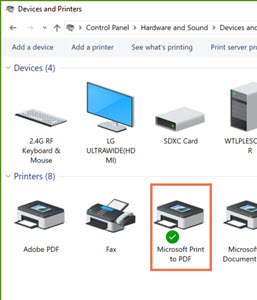
- The default printer has a green checkmark by it.
- If there is not a green checkmark by any printers, set one:
- Right-click a printer (ideally the report printer).
- Select set as default printer
- A windows message displays letting you know Windows is not managing your default printer.
- Click OK.
Receipts are cutting off the price
If your receipts keep cutting off prices or is cutting off the right side of the receipt, try following these steps.
- Check the zoom settings.
- In Windows: Settings > System > Display > Change the size of text, apps, and other items.
- If Zoom is set to anything else, change it back to 100% (Small/Recommended).
- Check the scaling settings.
- Go to Display in Control Panel.
- Click the use a customer scaling level link in the last sentence.
- If it's set to anything else, change it back to 100%.
KB22-168