

Before you begin
- This article reviews Ascend Pay and QuickBooks integration. Haven't heard of Ascend Pay? Click here to join the fun!
- This is only required if you integrate Ascend with QuickBooks.
New Mapping Required in Version 26.22
Beginning with Version 26.22 a new account will require mapping in the Ascend Client: Credit Card Payouts. This will need to be mapped for any retailer that has Ascend and QuickBooks integrated.
Please consult your Bookkeeper and/or Accountant to confirm. Until the Account is mapped, you will receive a pop-up reminder form Ascend and will not be able to export your IIF file. Ascend Bookkeeping's recommendation is to map the Credit Card Payout to the same expense account as your cash payouts, typically a Suspense or Ask Accountant expense account.
To update in Ascend HQ: Ascend HQ > Settings > Integrations > Accounting Services > Bookkeeping Configurations > Options. You will also need to update the mapping in the Ascend Client as well: Ascend desktop > Options > QuickBooks.


QuickBooks
- In QuickBooks, create a new clearing account (other current asset, OCASSET) to be used for the Ascend Pay In Transit funds.
- The OCAsset account is a new account that needs to be created by all Ascend Pay customers.
- Note: If you are a multi-store retailer, it is recommended to create a OCASSET account for each location.
- The OCAsset account is a new account that needs to be created by all Ascend Pay customers.
- Import the new Chart of Accounts from QuickBooks into Ascend by following these instructions.
Ascend Options
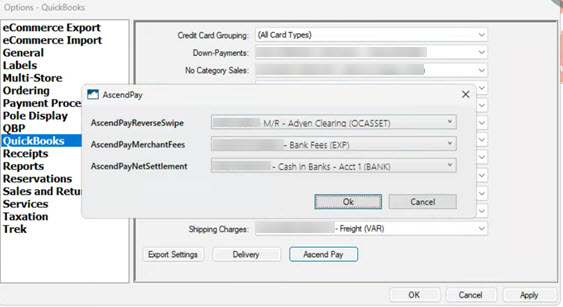
- Navigate to Options > QuickBooks.
- Change Credit Card Grouping to (All Card Types).
- Click the Ascend Pay button.
- Map the following accounts:
- AscendPayReverseSwipe: Enter in the newly created clearing account mentioned in the QuickBooks section above. This will temporarily hold funds not yet deposited into your bank account.
- AscendPayMerchantFees: Enter in the expense account for credit card fees.
- AscendPayNetSettlement: Enter in the bank account Ascend Pay will be using to deposit the funds captured.
- Click OK to save changes.
Ascend Database Explorer
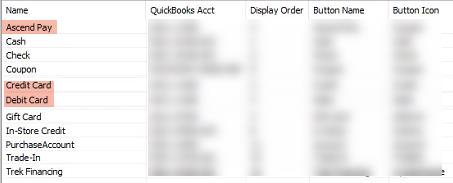
- Navigate to Database Explorer > Payment Types.
-
For the following Payment Types, change the QuickBooks Acct mappings to the newly created clearing account from the QuickBooks Setup section above.
- Ascend Pay
- Credit Card
- Debit Card
KB24-008