

Starting with Ascend version 26.18 a new permission is required for negative Ascend Pay payments.
As part of our work towards reference returns and security, beginning with Ascend version 26.18 (released 10/14/26) there is an additional permission required for a user to enter a negative amount on an Ascend Pay payment.
This Ascend Pay - Refunds permission already exists in the User Permissions list, but is not assigned to anyone by default. Ask your manager to review the Users/Roles that handle these payment and grant access to those that need it.
Without the permission, a users will see a prompt offering to continue through an authorized user's login when using a negative Ascend Pay payment. Declining the prompt returns the user to the payment screen.

Follow steps listed here to start a return. Once you are ready to return the payment follow the steps below.
Note: Card not present to take return? Call Ascend Support
- Select the Ascend Pay payment type

- Verify the amount with the customer that will be going back on the card. Hit Take Payment
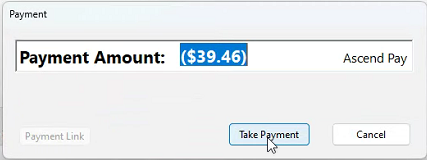
- Wait for payment to send to terminal
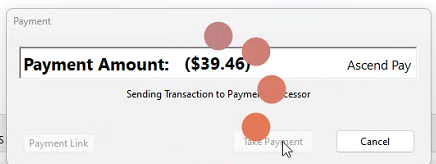
- When you see waiting on customer, have them follow the prompts on the terminal to complete payment
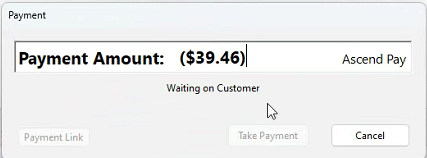
- Ascend will record payment upon completion and the return value will post in 2 business days
